

1
Fill in the subscription details
On the Subscription step, enter: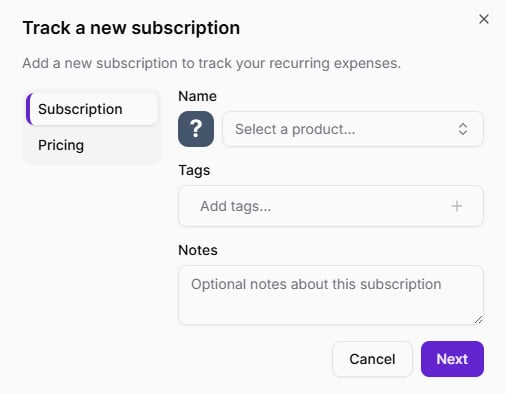
- Name – Select an existing product or create a new one.
- Tags – Add one or more tags (for example, business, personal, or marketing).
- Notes – Optional notes about this subscription.
2
Set the pricing details
On the Pricing step, enter: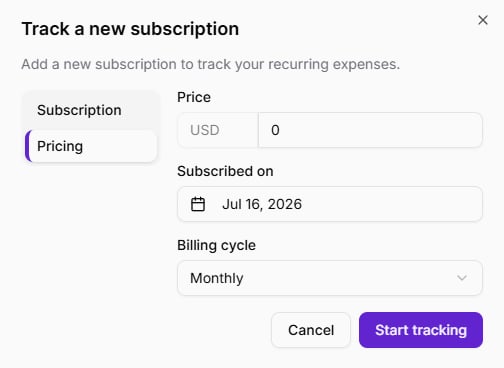
- Price – The subscription cost. The currency comes from your current Space settings.
- Subscribed on – The date the subscription started.
- Billing cycle – How often the payment repeats (for example, monthly, quarterly, or yearly).
3
Start tracking
Click Start tracking to add the subscription to your list.The new subscription appears in the subscriptions table and is included in all dashboard reports.
You can add as many subscriptions as needed.Renewal dates are calculated automatically from the billing cycle and subscribed-on date.You can edit or update details anytime from the subscriptions table.